
Incidents (RMM)
From Zenitel Wiki
Be notified of incidents when they occur.
Incidents are used to flag an issue with a device. Incidents may be:
- Automatically detected when the device’s operating parameters exceed any manufacturer-defined bounds (e.g., device overheating). These types of incidents are automatically resolved when the parameters go back to normal.
- Generated by a device to indicate an internal issue (e.g., back panel open). These types of incidents may be automatically closed by the device.
- Generated by users to report generic issues (e.g., plastic case cracked). These types of incidents can only be closed by users.
The Incidents screen displays information on all active incidents within your organization. If you are unable to close an incident and the device manufacturer offers remote support, the incident can be escalated to a ticket, which the manufacturer will then address and resolve.
Once an incident is resolved, it will be closed and removed automatically from the list.
How to report an incident
To report an incident with a device:
- Navigate to the device’s details screen by selecting the device from a widget on the Organization Overview page, the Devices screen, or any other screen that links to the device.
- Click the Support button, and select Report Incident.
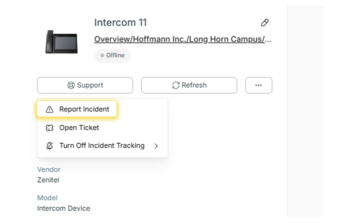
- Provide a Title and Description for the incident, and assign a priority. This can be Planning, Low, Moderate, High, or Critical.

What happens after an incident is created?
After you create an incident, you can track it via:
- The Incidents screen.
- The Incidents widget on the Organization Overview dashboard, which shows a summary of each incident in the company.
- The Active Incidents widget on the Organization Overview dashboard, which shows the number of active incidents in the company.
- You can click any incident to access details about it.
If Integrations are set for the account, they will automatically open a corresponding ticket in a ticketing service, send an email or webhook, or perform some other action, depending on the integrations enabled.
Managing incidents
Navigate to Incidents in the left-hand menu to view your company’s incidents. You can choose to view only active incidents, or all incidents.

The settings cog in the top-right corner of the screen lets you customize the columns displayed. Make sure the columns that you want to be visible are checked in the Customize Columns list. Be aware when doing this, however, that your selection will be visible to all users.
The Incidents screen can display the following columns:
- Title: A short description of the incident.
- Priority: A color-coded indicator of the severity of the incident, which can be Planning (Purple), Low (gray), Moderate (yellow), High (orange), or Critical (red).
- ID: Automatically generated, unique ID of the incident.
- Device: The device name.
- Model: The model of the device.
- Manufacturer: The name of the manufacturer who supplied the device, i.e. Zenitel
- Customer: The customer the device belongs to.
- Space: The space that claimed the device.
- Created: The date and time at which the incident was created.
- Updated: The date and time at which the incident was last updated.
- Status: The current status of the incident, which can be Active (green) or Closed (gray).
- Assigned to: The user who should look into the issue and follow up.
Click an incident to open the Incident Information screen.

An admin can either manually resolve the incident or escalate it to Zenitel for further remote assistance.
An incident that is resolved cannot be reopened, with one exception - resolving an incident created automatically via manufacturer-defined rules might cause it to be reopened if the underlying rule still applies. For example, if you resolve a “tone test failed” incident without fixing the underlying issue, the incident will be reopened automatically.
When maintenance mode is enabled, incidents won’t be triggered in support workflows. See the Set Maintenance documentation.